
Essential details
MOQ:From 500
Lead time:within 3 weeks
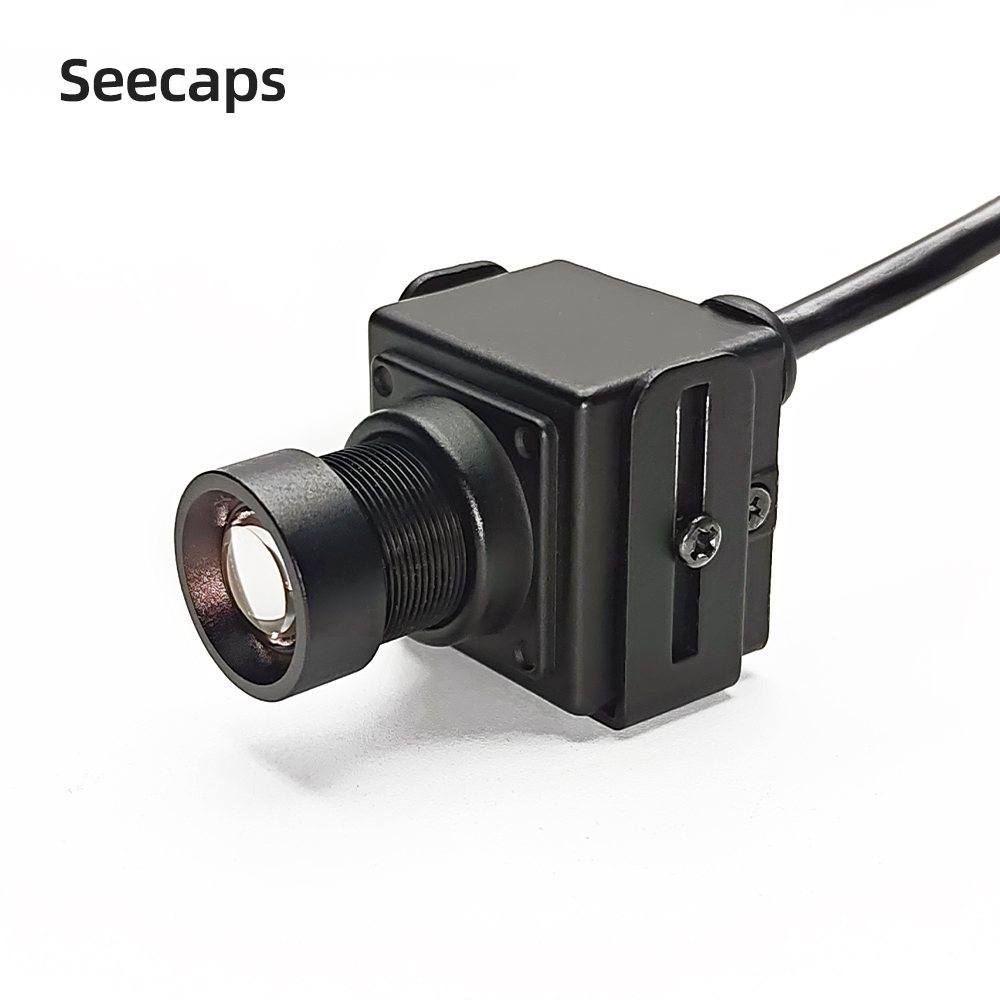
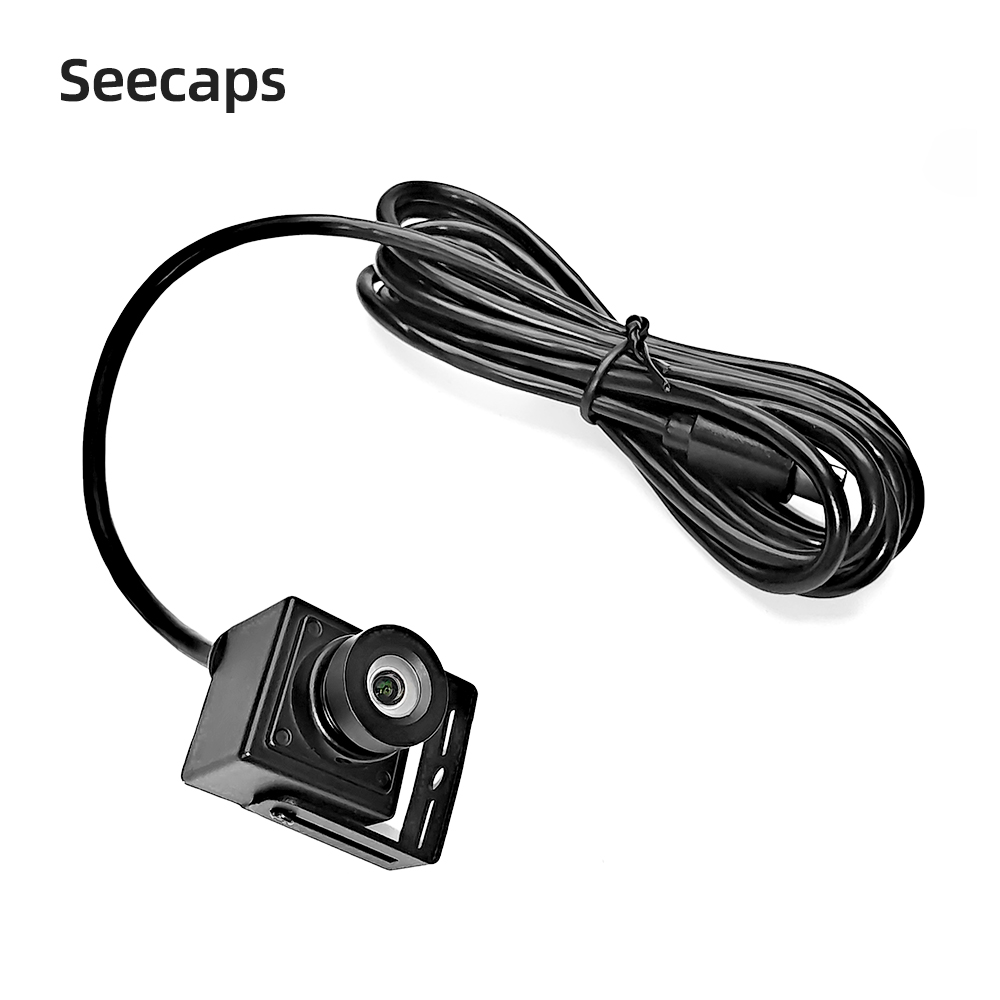
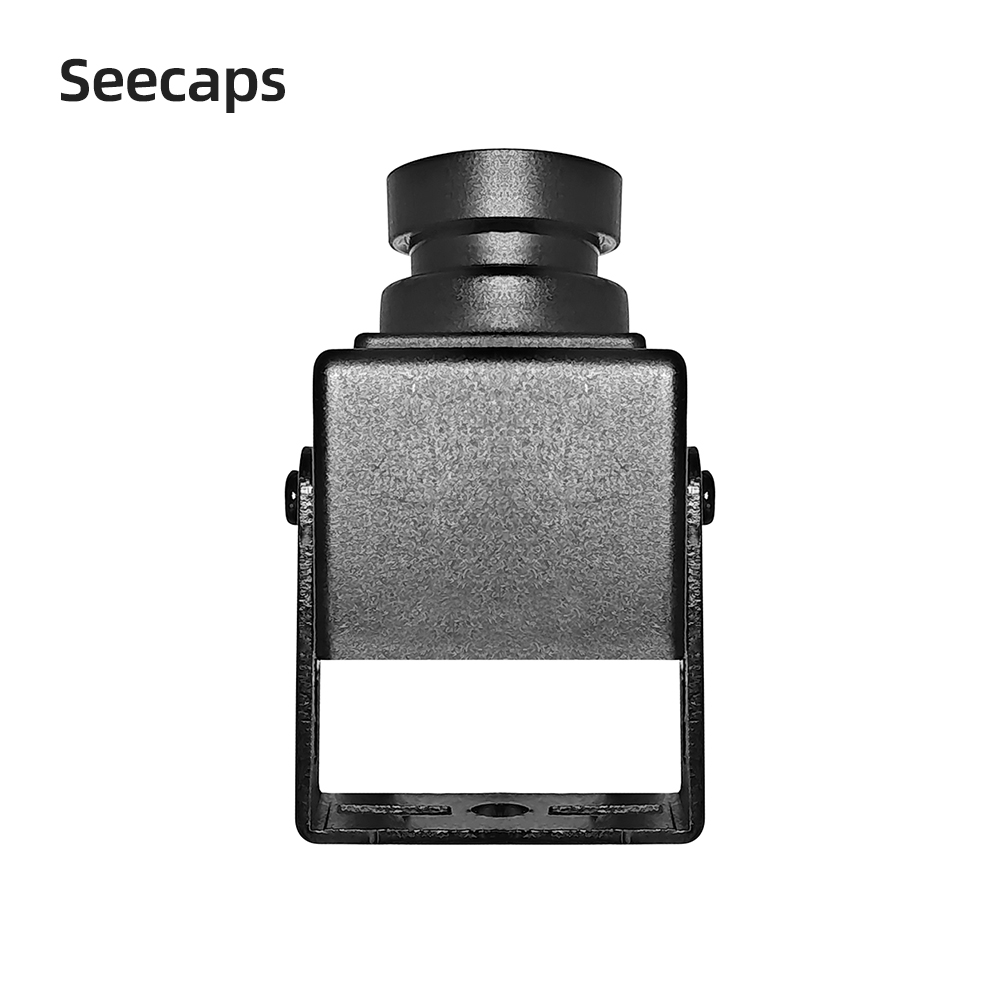
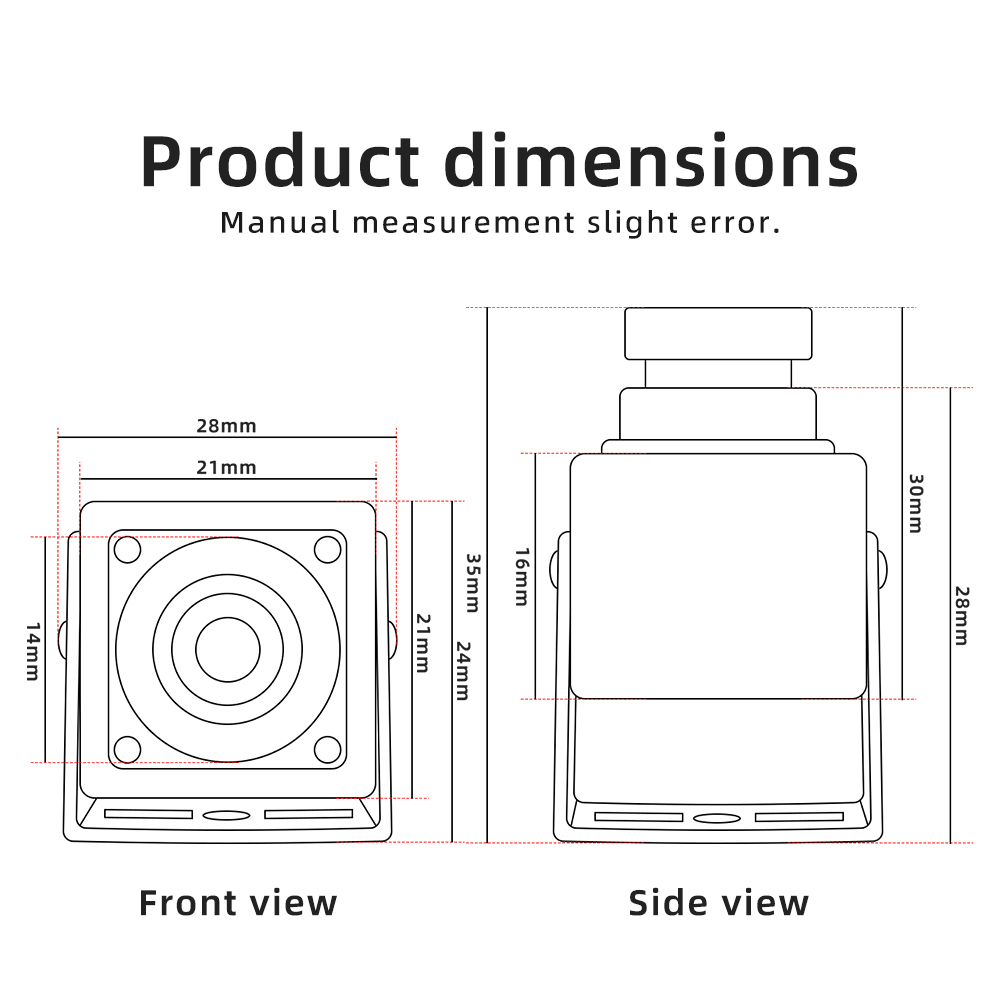
Size:L(2.8)*W(3.5)*H(2.4) cm
N.W:0.0635 kg
Shipping:Express delivery
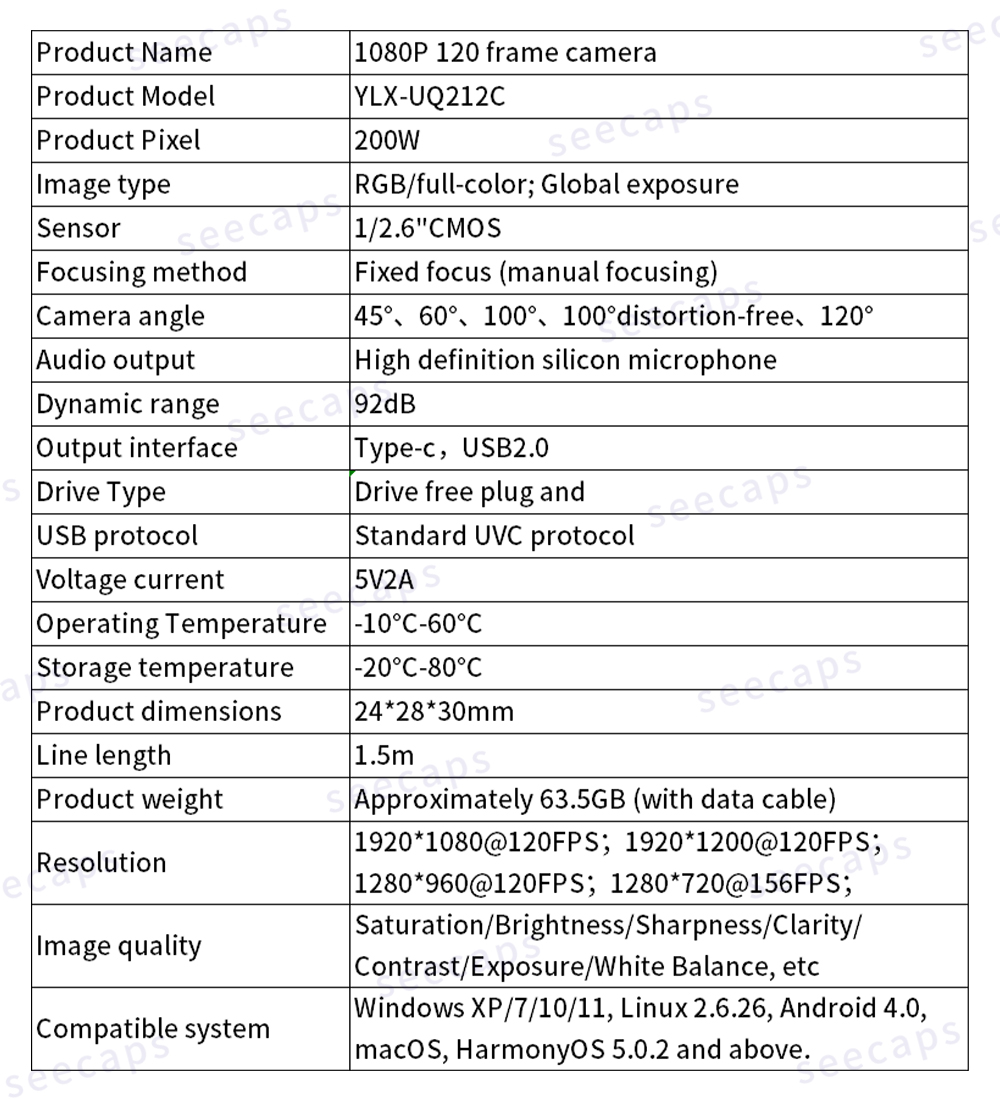
Specification Number:YLX-UQ212C
Package Description:Camera
Product details
What should I do if the computer doesn't respond or doesn't recognize the USB camera after plugging it in?
① Change the USB port (preferably plug it into the rear USB port of the host to avoid insufficient power supply from the front/hub);
② Replace the data cable (some cables only charge and do not transmit data);
③ Check the Device Manager for any unknown devices or yellow exclamation marks, and right-click to update the driver;
④ Test on another computer to see if the camera hardware is faulty.
What should I do if my USB device is not recognized?
① Driver-free camera: Restart the computer and reseat the cable;
② Close the third-party antivirus/firewall and try again.
Why is the camera connecting and disconnecting frequently, and frequently going offline?
Due to insufficient power supply, avoid using USB extension cables and hubs, and directly plug into the USB port on the motherboard. For laptops, plug in the power supply and reduce brightness/resolution.
What should I do if the USB camera screen is black and only shows a black frame?
① It is occupied by other software (close WeChat, DingTalk, and live streaming software);
② Permission not enabled: Navigate to Windows Settings → Privacy and Security → Camera, and enable the permission;
③ The camera cover is not opened.
How to solve the problem of blurry camera images, poor visibility, and inaccurate focusing?
① Manually rotate the lens to adjust the focus (supported by most USB cameras);
② Check the lens for fingerprints and dust;
③ Turn off autofocus or reset image quality in the software.